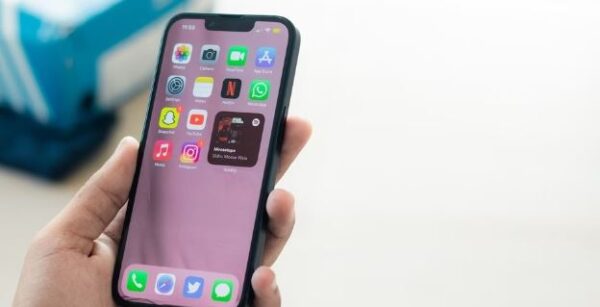
1. Clean up your home screen
Nobody likes a messy home screen on the iPhone but there is a tool called App Library which automatically organises your apps in labelled groups to make them easier to find. The idea is you can find apps with a couple of swipes and taps. If you have lots of home pages full of apps, App Library is for you. You can find App Library by scrolling the very last home screen – just keep swiping left and you will find it. You don’t have to organise this screen. All your apps will appear in little four-square boxes. If there’s an app in the App Library that isn’t on your home screen, it’s easy to add. Just tap and hold on an app icon until you see the context menu, and choose “Add to Home Screen.” The App Library is a way to organise and easily find your apps on the iPhone.
2. Stop apps from tracking your location
Most third-party apps you download on your iPhone track your behaviour and preferences for marketing purposes. In fact, some apps even have access to your personal information but thankfully the iPhone has the ability to turn off those apps to see where you are. All you need to do is to open Settings on your iPhone and tap “Privacy” and then select “Location Services.” You can turn location services off entirely by toggling the switch at the top of the screen. However, this will also disable functionality for useful features such as your weather app and Maps. What you can do is see a list of individual apps that can track you. Toggle off any that you don’t want to share your location with.3. Turn off mobile data when not in use
If you’re not subscribed to an unlimited mobile plan, or aren’t always in range of a Wi-Fi connection, it’s easy to go over your monthly mobile data allowance. Which is why it is recommended to turn off the mobile data when not in use. An easy setting in iOS lets you quickly turn mobile data on or off. On your iPhone, go into Settings and tap Cellular to open the Cellular data menu. On the Cellular screen, tap the Cellular Data toggle button to turn it on or off.